
Voice Chess Usage Guide
This article describes how to use the Voice Chess application to its full potential.
Basic Usage
To command the pieces on the virtual chessboard inside the Voice Chess application you’ll need a microphone and after the program strats just clearly say the move commands in a way, that will allow your device to pick your voice.
The move command structure is based of Portable Game Notation (PGN) for chess. It should be just as easy as simply reading PGN move strings, with this general template:
[PIECE] [FILE] [ROW] [captures] FILE ROW [promotes to PIECE] [check|mate]
where:
PIECEis eitherking,queen,rook,bishop,knight. For pawn moves leave it empty (butpawnwill also be recognized)FILEis a name of file on board (lettersA-Hor their code words from NATO phonetic alphabet)ROWis a name of row on board (number between1and8)- Parts in square braces (
[and]) are optional as in PGN description
One special case is a castling, to perform it (when conditions are met) say:
short castleorcastle king sidefor kingside castlinglong castleorcastle queen sidefor queenside castling
Squares on a chessboard are identified with standard algebraic notation:
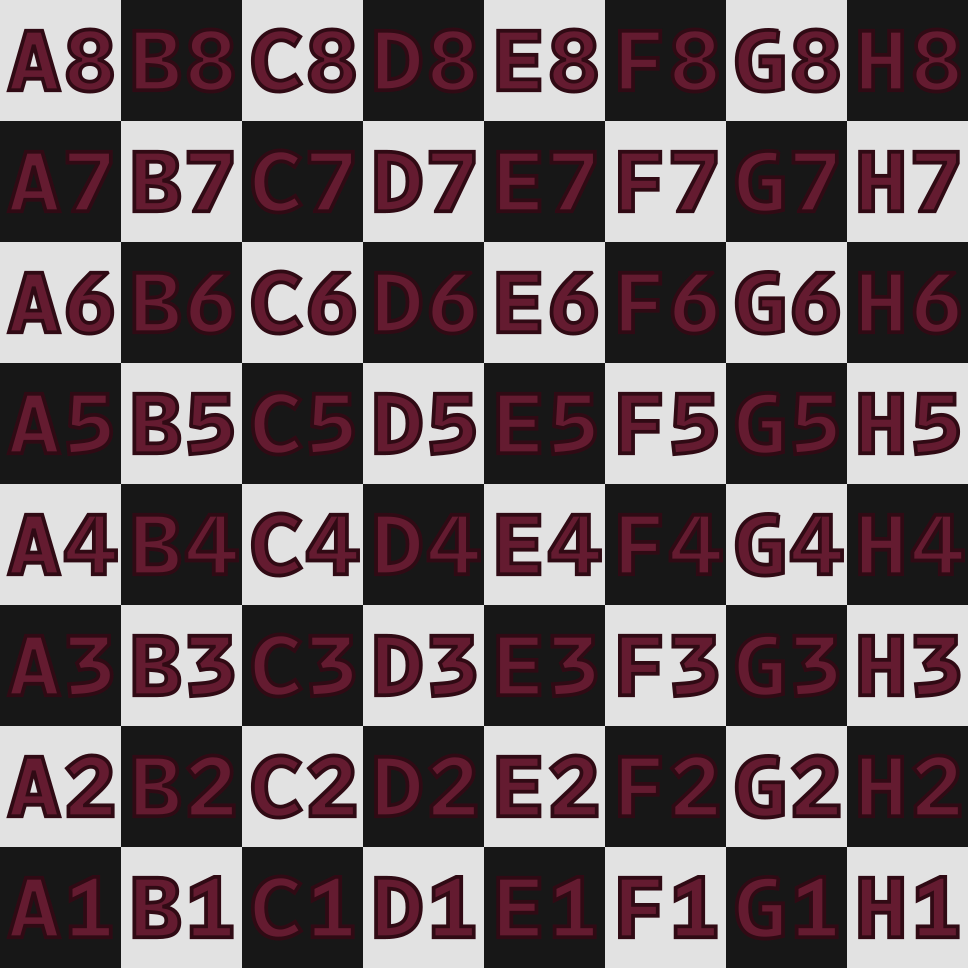
and a reference of chess pieces with their names:

Command Line Options
The Voice Chess application supports a number of different options and settings, but all of them are only accessible via a command line arguments. I know, it’s preposterous, but it is what it is - maybe at some point in the future I’ll have a bit of time to create some kind of launcher, which will wrap all those options and present them with graphical interface.
The basic command structure is as follows:
voicechess  [-h] [--version] [--enemy=<0 or 1>] [--engine-elo=<number>]
            [--engine-path=<string>] [--model=<string>]
            [--position=<string>] [--side=<0 or 1>] [--tokens=<string>]
            [--window-height=<number>] [--window-width=<number>]
Chess Settings
--position=<string>- the initial position FEN string, the game will start with this position. Can be used to play Chess960 or to try yourself against chess riddles. By default, it will be a standard starting position for chess.--side=<0|1>- the side (black or white) which will be controlled by player (if engine is enabled).0means you will play as white and1means you will be playing as black. It also sets the chessboard from the perspective of the chosen side. When using with the--positionoption be sure to coordinate the two.
Chess Engine Settings
--enemy=<0|1>- the controller of the opposing side pieces. If value is0it means the opposing side’s pieces will be controlled be chess engine (engine is enabled), otherwise (1) both sides are controlled by voice commands.--engine-path=<string>- a path to the chess engine of choice (this path must be either absolute or relative to the application directory) or name of the engine executable, if it is present in systemPATHvariable. The engine must be UCI complaint to work. Default value points to the Stockfish executable provided with the installation of Voice Chess.--engine-elo=<number>- the desired target ELO ranking of the engine. It may not work, as ELO settings are optional in UCI. Default is 1400.
Voice Recognition Settings
--model=<string>- the name of the Vosk model to use for voice recognition. The model directory with the same name as that provided here must be present inside the application’smodels/directory. Please make sure that chosen model is compatible with chosen token’s file! Default value isen-us-default.--tokens=<string>- the path to the file containing definitions of tokens used during speech recognition of chess moves. Please make sure the chosen tokens are compatible with chosen Vosk model! Default value isen-default.yaml.
It is also possible to customise the speech recognition model and tokens used by the Voice Chess application to suit your needs or to allow usage with different language. For more information on this topic please read the Speech Recognition Customisation Guide.